
Data filters enable the specific information the user selects to be displayed on the page.
1. The number next to each data filter type is the number of items that the user is able to filter on.

2. Click on the dropdown arrow next to the data filter type to select. The specific items available within the data filter will be displayed.
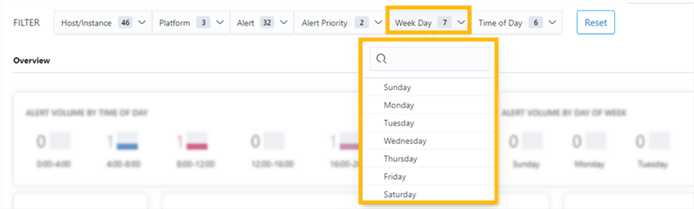
3. Click on a filter item to select it. Multiple filter items may be selected. A checkmark indicates the filter items selected, and a highlighted number appears next to the data filter type indicating the number of filter items selected. The Portal page will display the filtered information as the filter items are selected.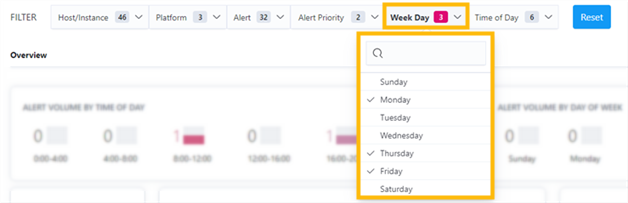
Tip: If there a high number of items in the dropdown list, type the name of the item in the search bar.
Note: Some filter items will show an "x" when deselecting it and removing the checkmark. The "x" indicates the item is being removed from the filtered results on the page. Click the item again to add it back in.
 - the item is being included in the returned results.
 - the item is not being included in the returned results.
4. Filter items selected can be unselected by clicking on the filtered item again to remove the checkmark.
Tip: To remove all filtered items selected, click on "Reset".