
The date picker on the upper right-hand side of the page allows the user to select a specific timeframe for the data being displayed on the page. Date ranges can be specified by using the calendar in the date picker.
1. To specify a date range by calendar, select the calendar icon in the date picker.
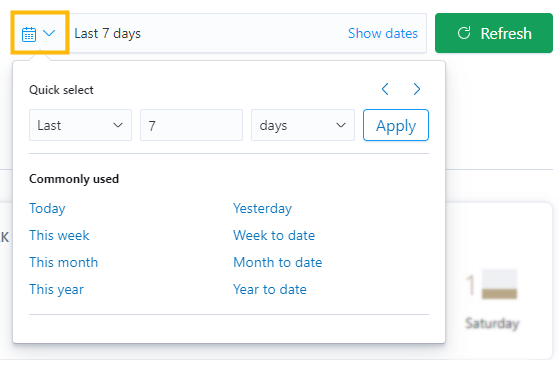
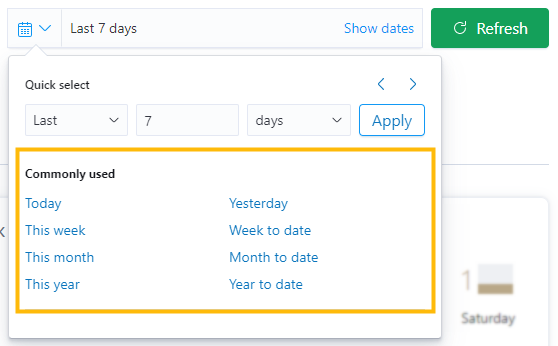
2. A dropdown box appears with options to select a date range by "Quick select" or "Commonly used".
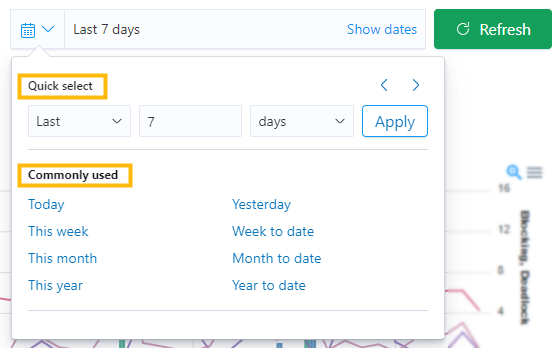
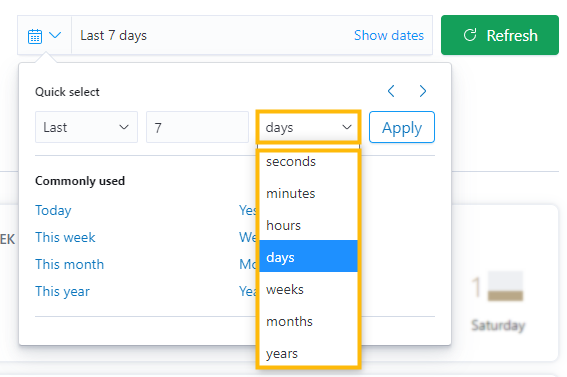
3. To select timeframes using "Quick select", click the dropdown arrow in each "Quick select" field and select the custom time period of choice. Timeframe selections will be highlighted.
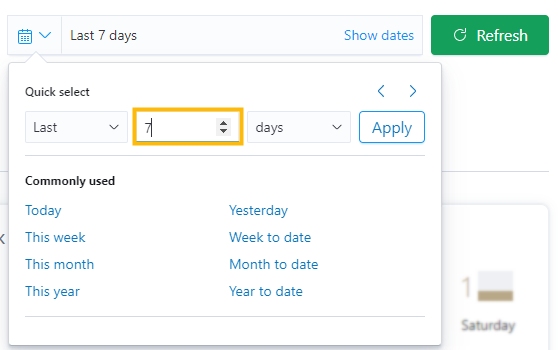
4. Click in the number field to edit the default number by typing a number in or by using the up and down arrows in the number field.
5. To select a date range by "Commonly used", click on the "Commonly used" link desired. The date range will autofill to the date range of the "Commonly used" link selected.
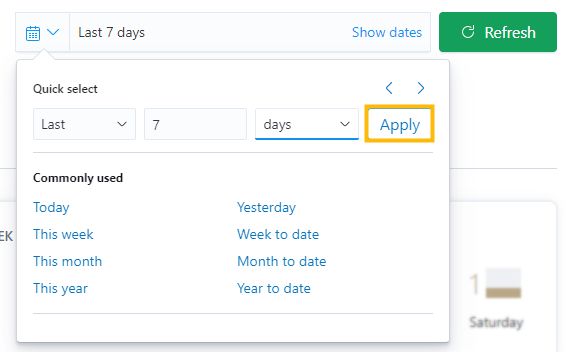
6. When selections are complete, click "Apply".
Note: The "Refresh" button refreshes the page to display the most up-to-the-second Portal data. It does not reset the user selected date range to the default date range.