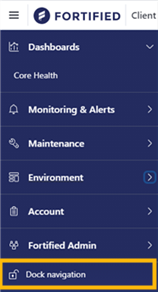
Navigate to specific areas within the Portal using the blue navigation menu on the left-hand side of the page. The Navigation menu lists the sections in the Portal the user can navigate to.
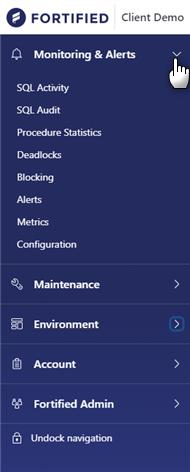
1. To expand a navigation section and view its subsections in the Navigation menu, click on the dropdown arrow next to the section title. The subsection options will appear listed. To minimize the list of subsections within a section, click on the arrow again.
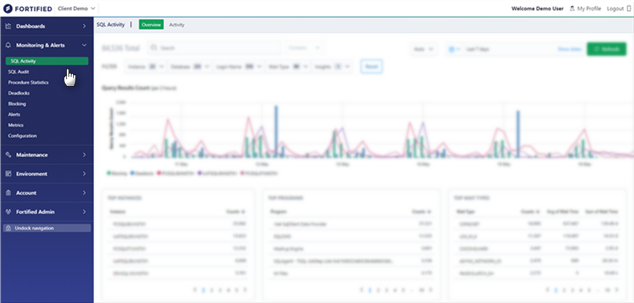
2. Select a subsection. The subsection title will be highlighted and the subsection data displayed on the Portal page.
3. To hide the Navigation menu and expand the display area, click on "Undock navigation" shown at the bottom of the navigation bar. The display area on the page is greyed out. Click anywhere inside the greyed out display area of the page to collapse the Navigation menu.
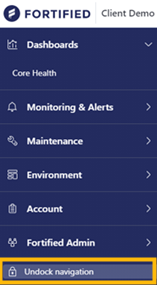
4. To expand the Navigation menu, click on the collapsed menu button on the upper left-hand corner of the page. The Navigation menu will expand.

5. Click on "Dock navigation" to keep the Navigation menu locked as expanded.